 If you’re always busy hustling and want to ensure that you don’t forget to pay for your Jesede services, you can easily set up an automatic payment through Payfast – it's: safe, convenient and easy to set up. This article shows you how you can set up automatic payments.
Step 1: Check your the mailbox you used when you signed up to Jesede, search for emails from billing@jesede.com and open an unpaid invoice.
If you cannot find any invoices then go to Step 2, otherwise, skip to Step 3. Note: you're probably checking the wrong email address or you deleted your invoices if you cannot find your invoice emails.
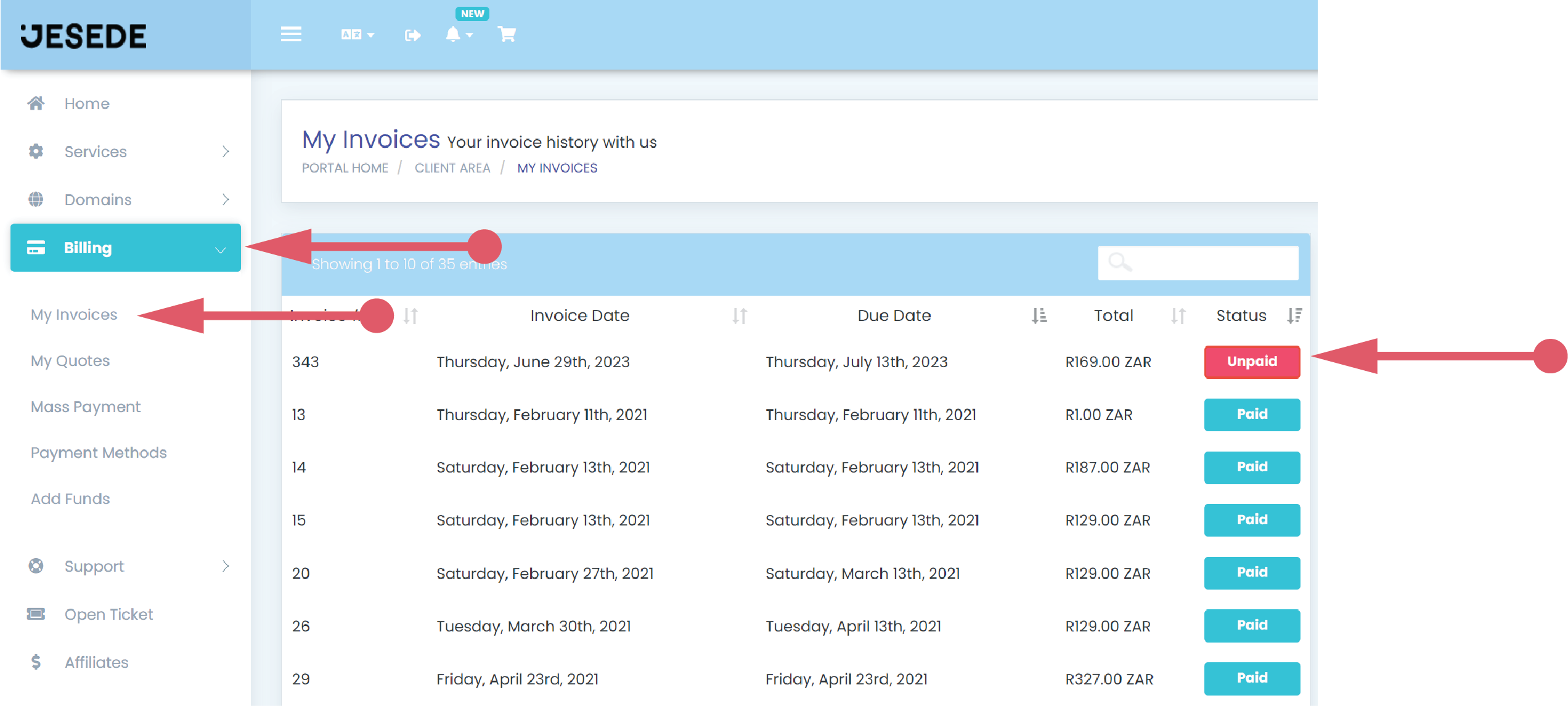
Step 2: Login into your Jesede client area and click on “My invoices” under the “Billing” area on the left side bar. This should bring up a list of all your invoices.
Click on any unpaid invoice to open the invoice. (Hopefully you don’t have more than one unpaid invoice :))
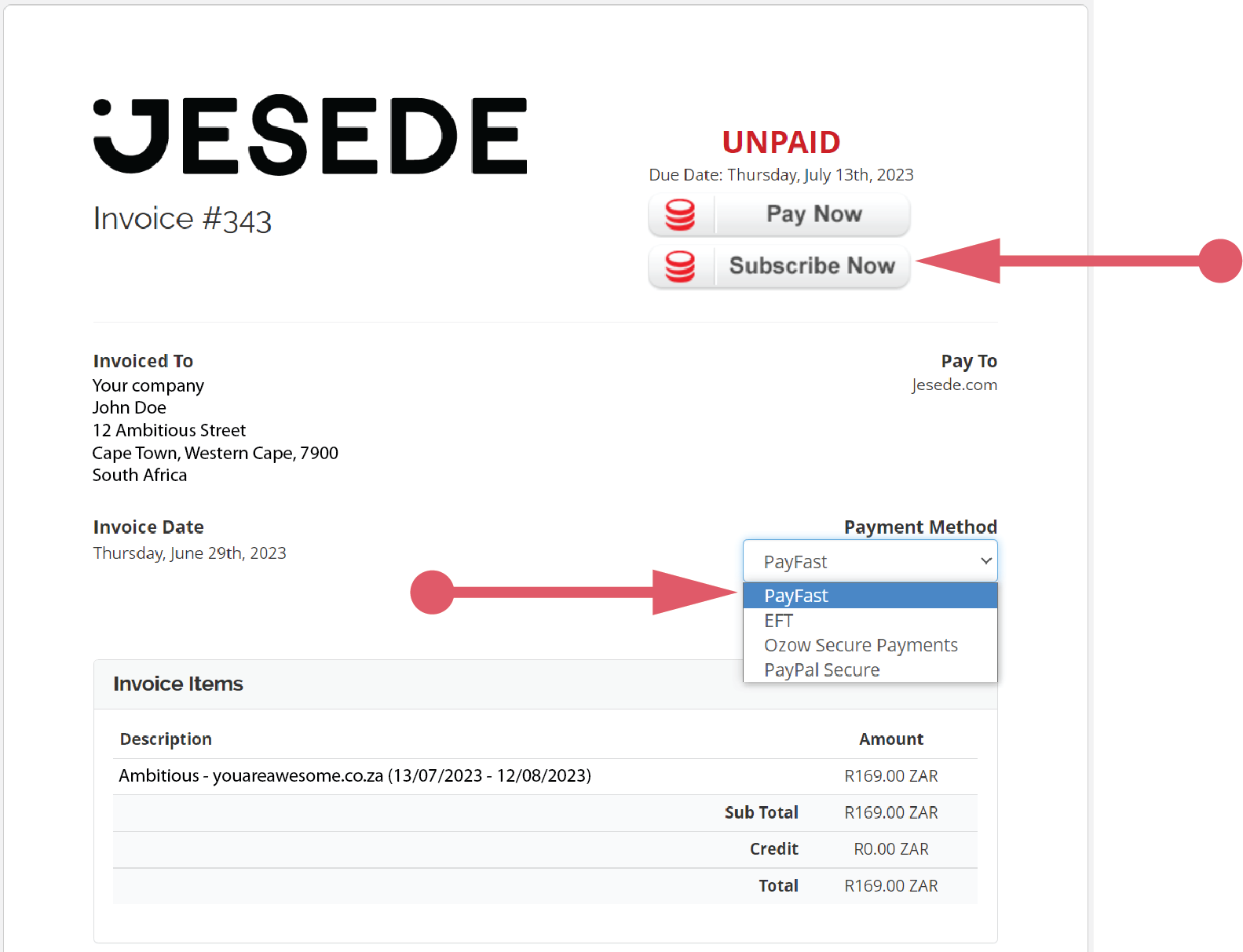
Step 3: Select the “Payfast” payment option then click on the “Subscribe Now” button.
Step 4: Enter you bank card details. Don’t worry, Payfast is trusted, secure and encrypted.
Note: we do not store any of your card data.
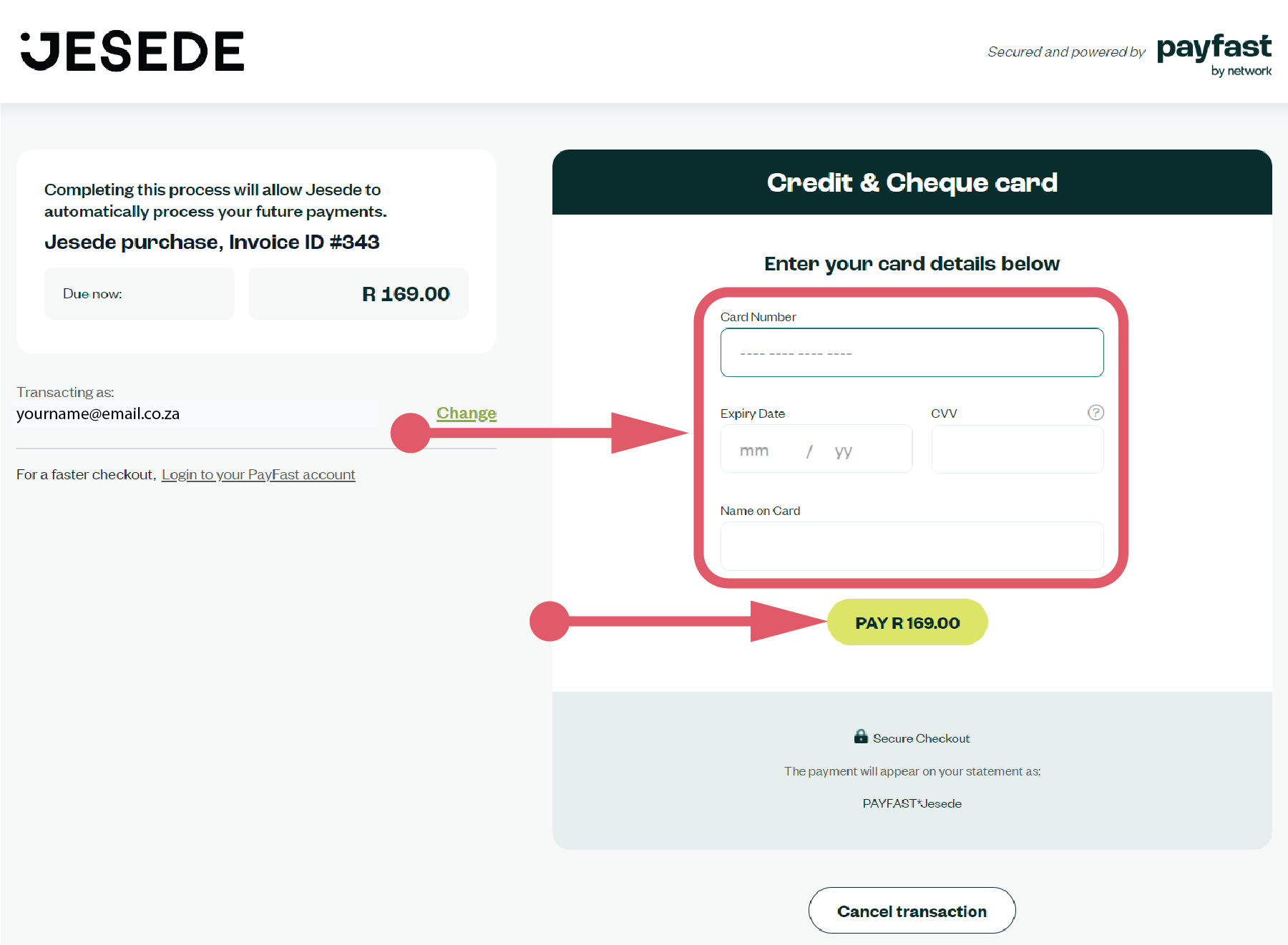
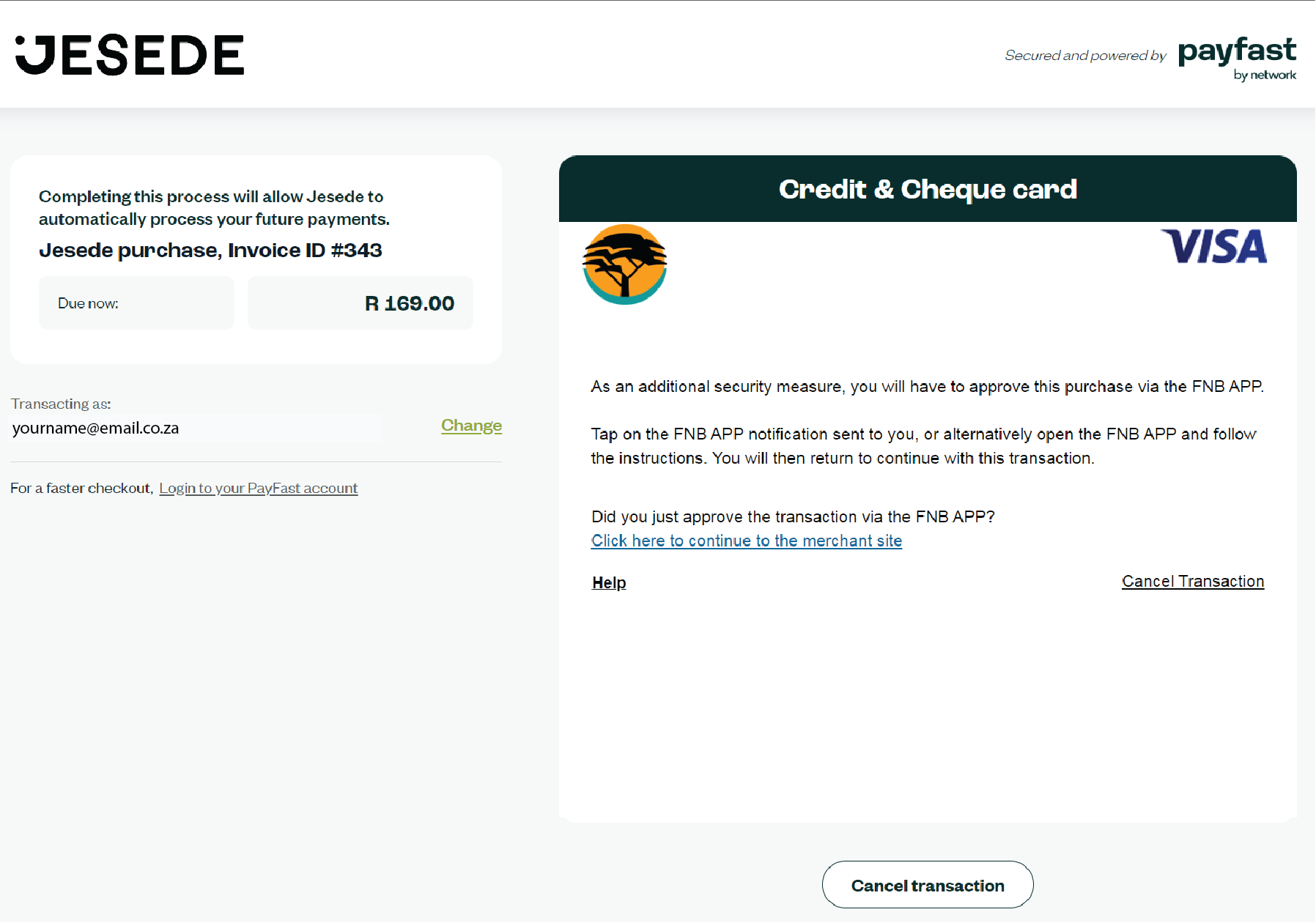
Step 5: Depending on your bank, you may have to authenticate the transaction via a one time password (OTP) or via your mobile banking application.
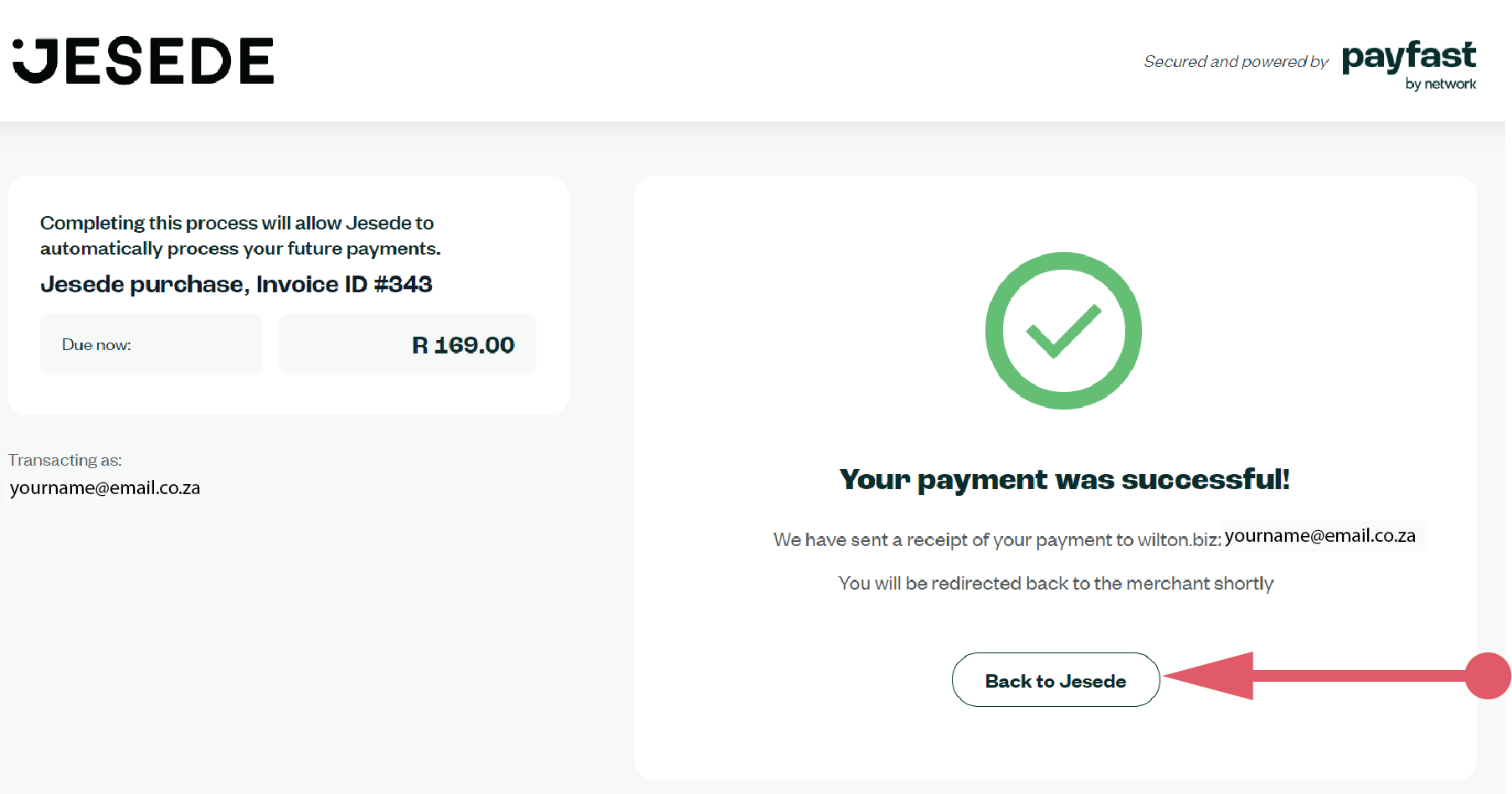
Step 6: Voila! The payment should have gone through and the automatic billing set up.
Click on the “Back to Jesede” button to go back to your invoice.
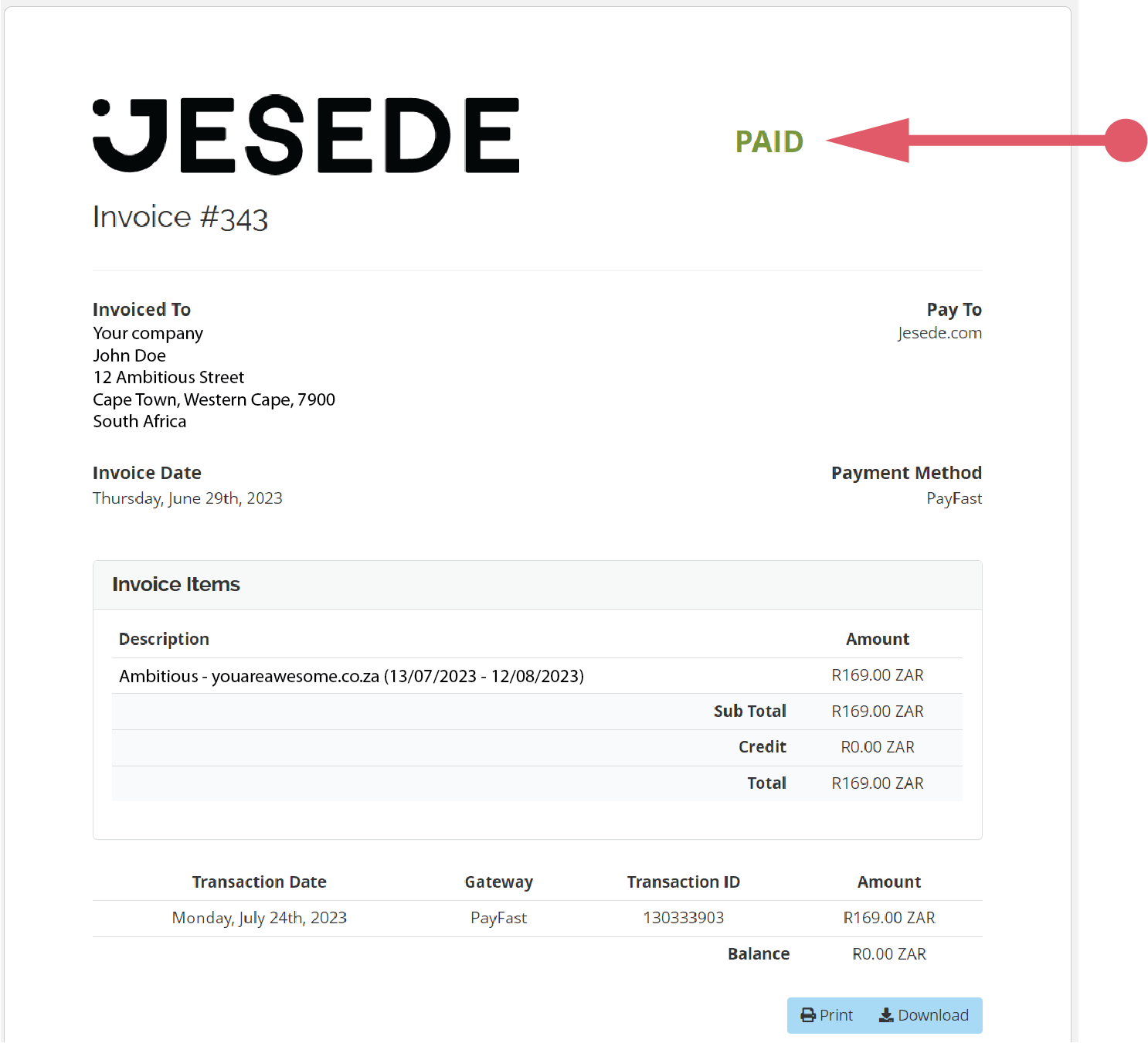
You will see that your invoice now shows as “PAID”.
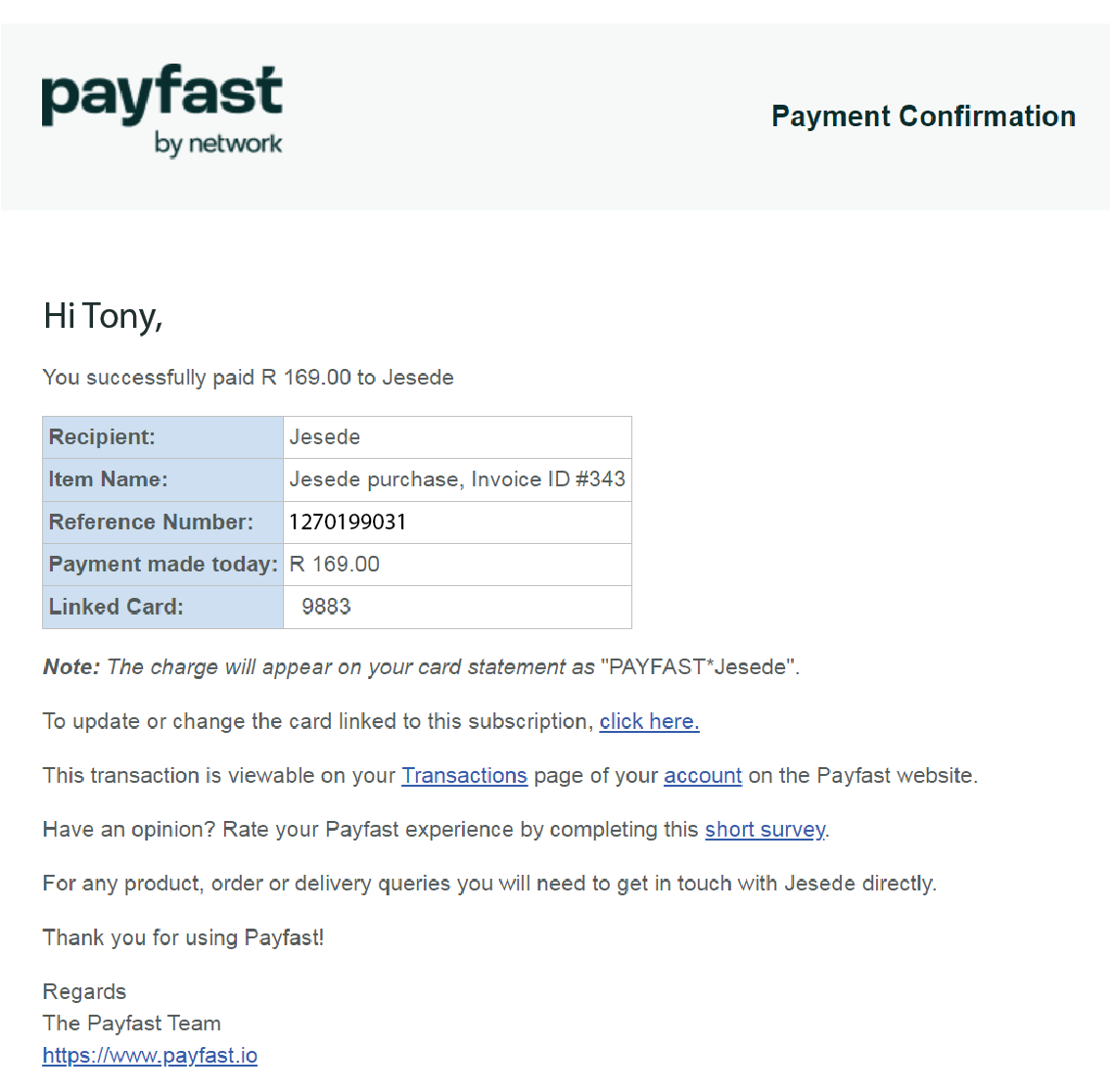
You should receive an email from Payfast with confirmation of the transaction payment and subscription.